Organization Processing Capacity 
The Processing Capacity module allows the controller (super-admin) to change or allocate the maximum capacity based on the resources available.
Each A10 Control deployment has a defined telemetry data processing capacity. This capacity essentially limits how much incoming telemetry data (metrics, events, logs) the controller can process. A10 Control is not meant to be an unlimited data; it balances between providing useful analytics and protecting itself from being overwhelmed by telemetry data floods. For more information, see Data Processing Capacity and Telemetry Log Rate Management.
Navigate to Processing Capacity Page
Navigate to Organizations > Processing Capacity > System Processing Capacity.
Figure 25 : Processing Capacity
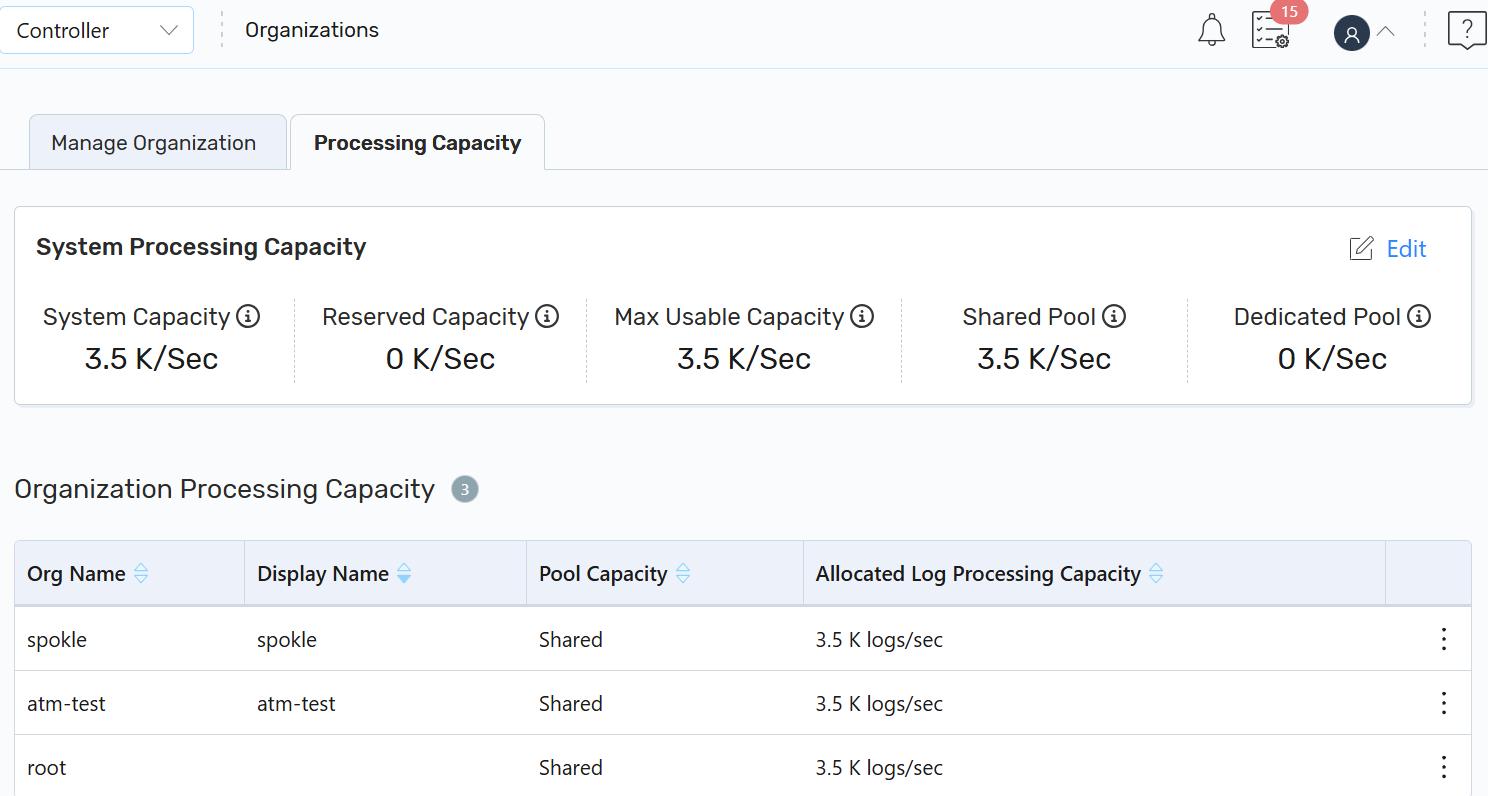
The Processing Capacity displays the following sections:
System Processing Capacity
The system processing capacity is the total log processing capacity available in A10 Control for all organizations.
This capacity determines how much telemetry, logs, and event data can be ingested, analyzed, and stored within a given time period. Additionally, this capacity is divided into reserved, shared, and dedicated pools, giving administrators flexibility in distributing resources.
To edit the system processing capacity of all organizations:
-
On the Processing Capacity page, under the System Processing Capacity section, click Edit.
-
On the Edit System Processing Capacity section, edit the required details:
System Processing Capacity Field
Description
System Capacity
The maximum system-wide log processing capacity that A10 Control can support.
This value represents the licensed or provisioned limit for all organizations combined.
Reserved Capacity The log collection capacity pool that is not being used as of now, is reserved for future use.
This buffer can be used later to absorb unexpected spikes, handle new organizations, or meet compliance requirements.
Max Usable Capacity
The actual log processing capacity of A10 Control used on average for the selected period. The log capacity cannot be less than the shared capacity of organizations.
It provides visibility into the real-world usage of available system resources.
Shared Pool
A pool of capacity that is dynamically shared among organizations. The shared pool cannot exceed the difference between the system log limit and the dedicated allocations.
This allocation type ensures that organizations can borrow unused capacity based on their instantaneous traffic levels.
Dedicated Pool
The log collection capacity pool that is used for allocating dedicated capacity to organizations based on their A10 Control license.
-
Click Save to save the system's processing capacity settings.
The confirmation message is displayed.
Organization Processing Capacity
The organization capacity represents the portion of the total system processing capacity allocated to an individual organization.
This capacity ensures that each tenant (organization) receives a fair share of system resources for log ingestion, telemetry analysis, and event processing. By default, organizations use the Shared Pool, but a controller or super-admin can allocate Dedicated Capacity when an organization requires guaranteed resources (for example, mission-critical services or compliance-driven workloads).
| NOTE: | The total capacity assigned across all organizations cannot exceed the licensed System Processing Capacity. |
To edit the organization processing capacity settings:
-
On the Processing Capacity page, under the Organization Processing Capacity section, the following details are displayed:
Organization Processing Capacity Field
Description
Org Name
A unique system name of the organization as defined during onboarding.
Display Name The user-friendly label for the organization. This is what appears in dashboards, reports, and capacity allocation screens.
Pool Capacity
The average log processing capacity consumed by the organization during the selected period. This value reflects real-world usage trends and cannot be less than the minimum shared allocation.
Shared Pool
The amount of capacity drawn dynamically from the system-wide shared pool.
Organizations in the shared pool automatically fetch unused capacity from others, but this allocation cannot exceed the difference between the total system log limit and the dedicated allocations.
-
Click the Kebab menu corresponding to the organization processing capacity, and then click Edit.
-
On the Edit Log Processing Capacity section, edit the required details:
System Processing Capacity Field
Description
Log Processing Capacity
Select either Dedicated or Shared log processing capacity.
When an organization is created, by default it uses the shared capacity pool.
- Shared: By default, new organizations are placed in the shared capacity pool, allowing dynamic resource usage.
- Dedicated: Guarantees a fixed portion of capacity exclusively for this organization.
Log Processing Capacity
This field is displayed only if you select the Dedicated option in the Log Processing Capacity field.
Allocate the dedicated capacity to one or more organizations, and others will still share the remaining capacity.
-
Click Save to save the log processing capacity settings.
The confirmation message is displayed.