Configure License Manager 
In A10 Control, the License Manager defines how licenses are activated, synchronized, and managed.
Depending on your deployment, you can configure one of the following:
- Global License Manager (GLM)
- A10 Control License Manager (ALM)
- Remote A10 Control instance as the Primary License Manager
To configure the license manager:
- Navigate to A10 Control home page > Controller scope > Platform > License Management > License Manager.
-
Click Edit.
The License Manager page is displayed.
- Select and configure one of the following options:
 Global License Manager (GLM)
This is a default option for license management. Licenses are directly retrieved and synchronized with the GLM portal.
Select the following:
Field Description Device License Config Use Management Port
Select to allow all management traffic (license activation, GLM communication, NTP, DNS, SMTP) to flow through the dedicated management interface.
- Click Save to confirm the changes.
A10 Control License Manager (ALM)This option is used when you want A10 Control to act as a local license manager.
Following fields are available.
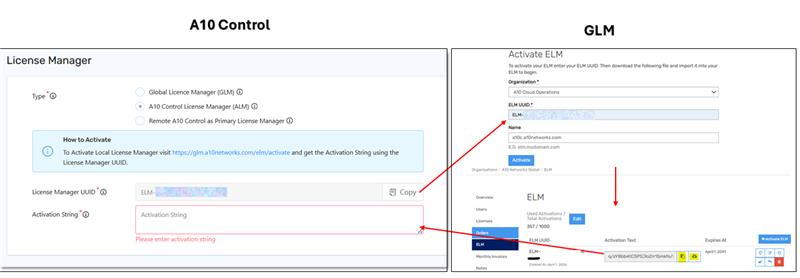
Field Description License Manager UUID
A unique identifier for the license manager instance. This UUID is used during ALM activation process in GLM.
Copy the License Manager UUID.
Activation String
It is used to activate the ALM in A10 Control. To obtain the Activation String and use it here, see Obtain the Activation String.
Obtain the Activation String: Keep both the GLM Portal and A10 Control instances open and then perform the following steps:
- Sign in to GLM (ELM Activation page).
- In the Activate ELM page, add the following details and click Activate.
Field Description Organization
Select your Organization.
ELM UUID
Paste the License Manager UUID copied from A10 Control.
Name Add the Name. Navigate to ELM option, click the Copy icon to copy the Activation string or click the Download icon to download the string file.
- Return to A10 Control, and on the License Manager page, paste the string into the Activation String field.
Click Activate to enable this license manager.
A confirmation message, ALM activation is successful, appears.
After activation, the ALM is ready to import and manage licenses locally.On the License Manager page, click Edit once again, then click Save to finalize the configuration.
Use remote A10 Control as Primary License ManagerThis option allows licenses to be centrally managed from a single A10 Control instance when multiple instances are deployed.
Ensure that at least one A10 Control instance is already configured and activated with ALM. This ALM-enabled instance will act as the Primary License Manager.
Select A10 Control License Manager (ALM) and provide the following:
- License Manager UUID
- Activation String
- Click Activate to enable this license manager.
- On the License Manager page, click Edit once again.
- Select Use remote A10 Control as Primary License Manager.
Enter or select the following:
Field Description Host
IPv4 or IPv6 address of the central license-managing A10 Control instance.
Port
Communication port of the central license manager (default is typically 443 unless customized).
Device License Config
Use Management Port
When selected, all management traffic (license activation, GLM communication, NTP, DNS, SMTP) flows through the dedicated management interface.
- Click Save to save the changes.
Once configured, this instance acts as the primary license manager. It allows multiple A10 Control instances to connect through this host. It centrally handles license distribution and automatically reclaims unused capacity when devices are removed or become inactive.
NOTE: When this option is configured, no license string is stored locally. The A10 Control instances fully depend on the primary license manager instance for all license activations and capacity tracking. If successful, a floating notification appears, and the imported license is displayed in the License section.