ACOS Image Catalog 
The ACOS Image Catalog module enables organization admins (provider-admins) to conveniently upgrade their Thunders by utilizing the published ACOS system images. Using the Image Catalog page, a Controller administrators (Super Administrator) can upload and publish these images, which can be easily accessed by organization-admins to upgrade their devices or clusters.
| NOTE: | Before you begin, ensure that you have downloaded the ACOS image from the A10 Networks Support portal and saved onto your device. |
Navigate to Platform > Image Catalog to view the Image Catalog.
Figure 40 : Image Catalog
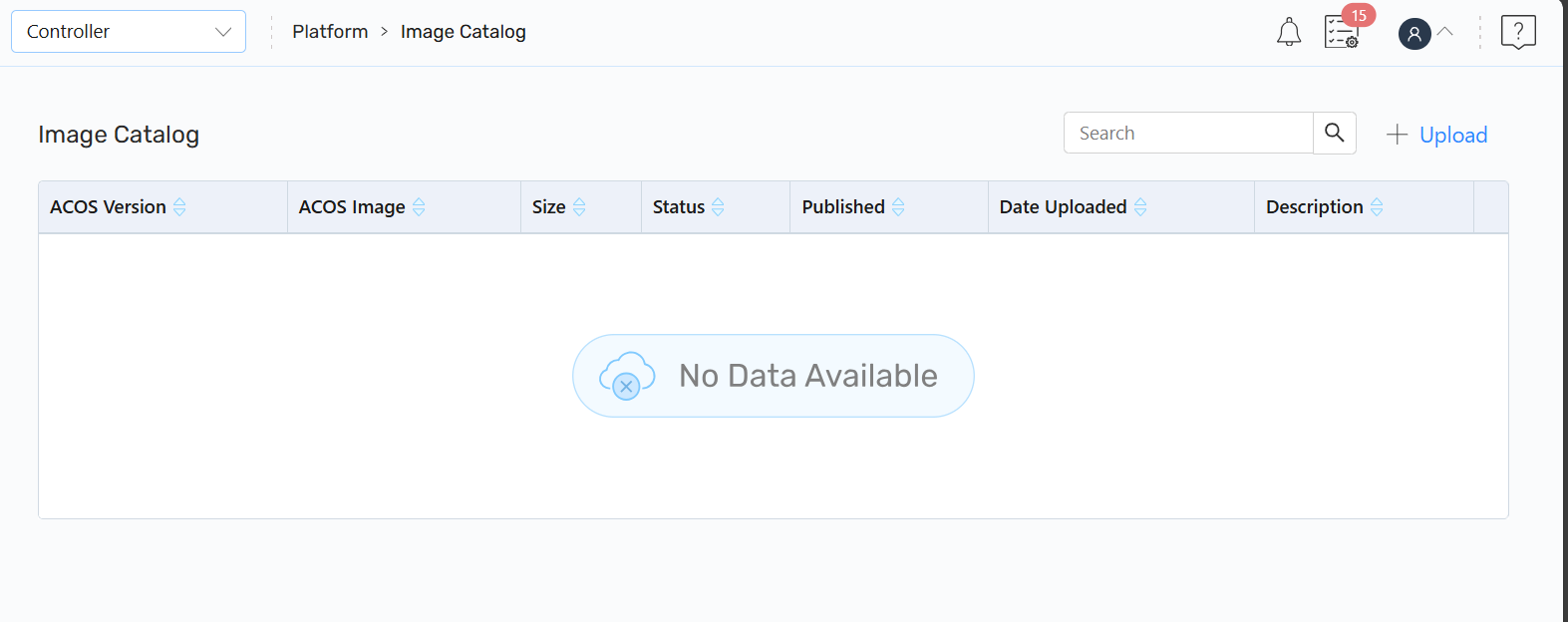
On the Image Catalog page, you can perform the following:
-
Upload images.
-
Publish images.
-
Unpublish images.
-
Delete images.
Manage System Image
To manage the system image:
- Navigate to Platform > Image Catalog.
-
On the Image Catalog page, click + Upload.
-
On the Device Image Upload page, enter the following:
-
ACOS Version: ACOS image version.
-
ACOS Image: Browse to the folder where the ACOS image is saved, choose the file, and click Open.
The ACOS image supports .tgz and .upg file formats.
The ACOS image can be downloaded from the A10 Networks Support portal.
-
Description: Description of the ACOS image.
-
-
Click Upload.
The Image Catalog page displays the Upload In-Progress status. After uploading the image successfully, the Uploaded status is displayed.
The Upload Failed status is displayed when the file transfer through network fails or the image being uploaded already exists in the system.
-
On the Image Catalog page, select an image that you want to publish. Click the Kebab menu, and then click Publish to make it available for organization administrators. After publishing the image successfully, the Published status Yes is displayed.
NOTE: Only the published images are available on the Organization Administrator View. You can also perform the following:
- To unpublish an image, select an image on the Image Catalog page, click the Kebab menu, and click Unpublish. The image will not be displayed on the Organization Administrator View.
- To delete an image, select an image on the Image Catalog page, click the Kebab menu, and click Delete. The image will be deleted on the Organization Administrator View.
An organization administrator can access the ACOS system image from the Organization Administrator view and use it for upgrading a cluster or device. For information, see Manage Device Images .