Default Login 
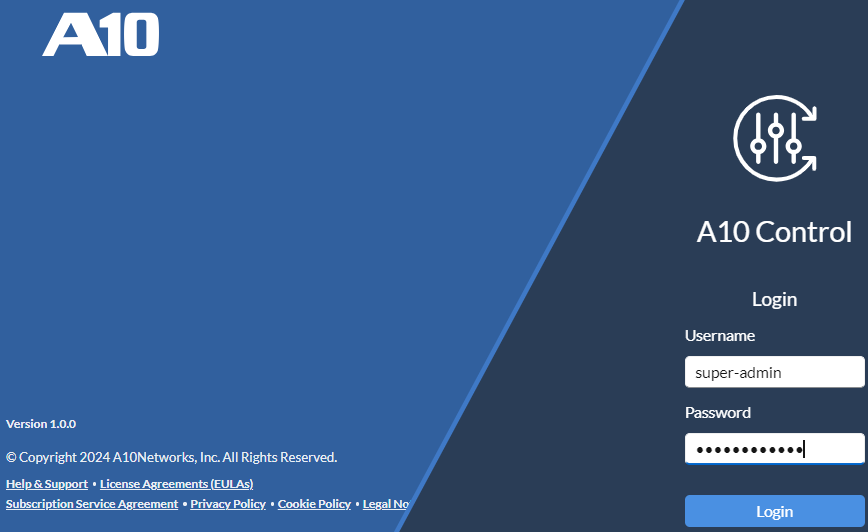
After A10 Control installation and deployment is complete, the console prompts for the A10 Control login credentials.
Figure 44 : Default Login
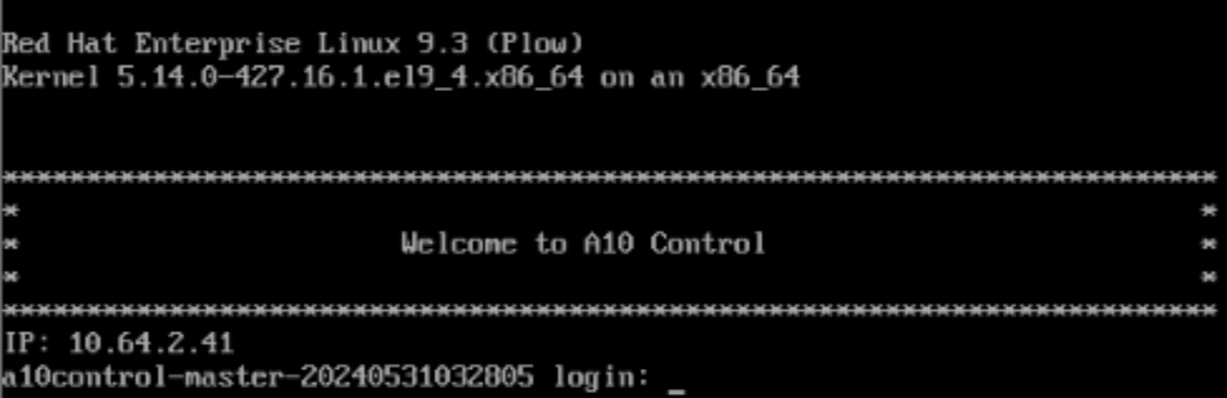
Use the default user super-admin credentials (super-admin/OnPr@mSym$2023##) to login to CLI.
To access the A10 Control GUI application, use the URL (https://<ip address> or https://<FQDN>) and launch the application.
-
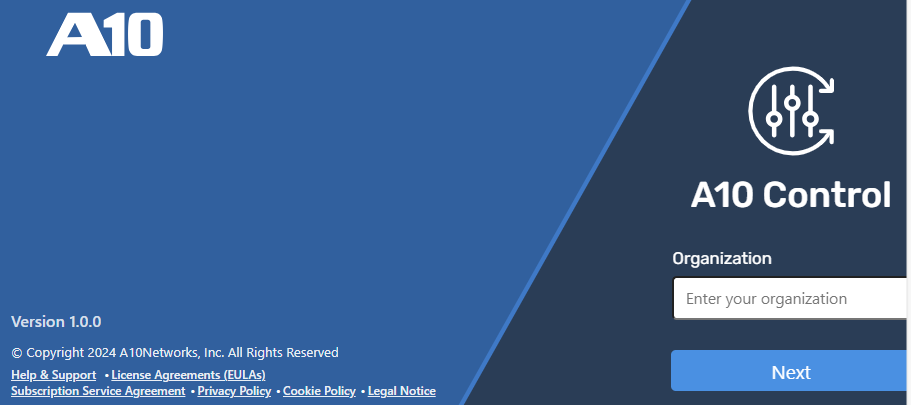
On the Organization page, enter the default login as root and click Next.
Figure 45 : Organization Login
-
On the Login page, enter the default credentials (
super-admin/Password@123).Figure 46 : Root Login

After successful login, the application prompts to reset the password. For information, see Manage Passwords.
NOTE: Super-admin password for both CLI and GUI are different. Changing the password for GUI will not change the CLI password. To change the password for CLI super-admin user, use the sudo passwdon SSH session.The License Agreement page is displayed. Accept the license to display the A10 Control Home page.
Figure 47 : A10 Control Home Page
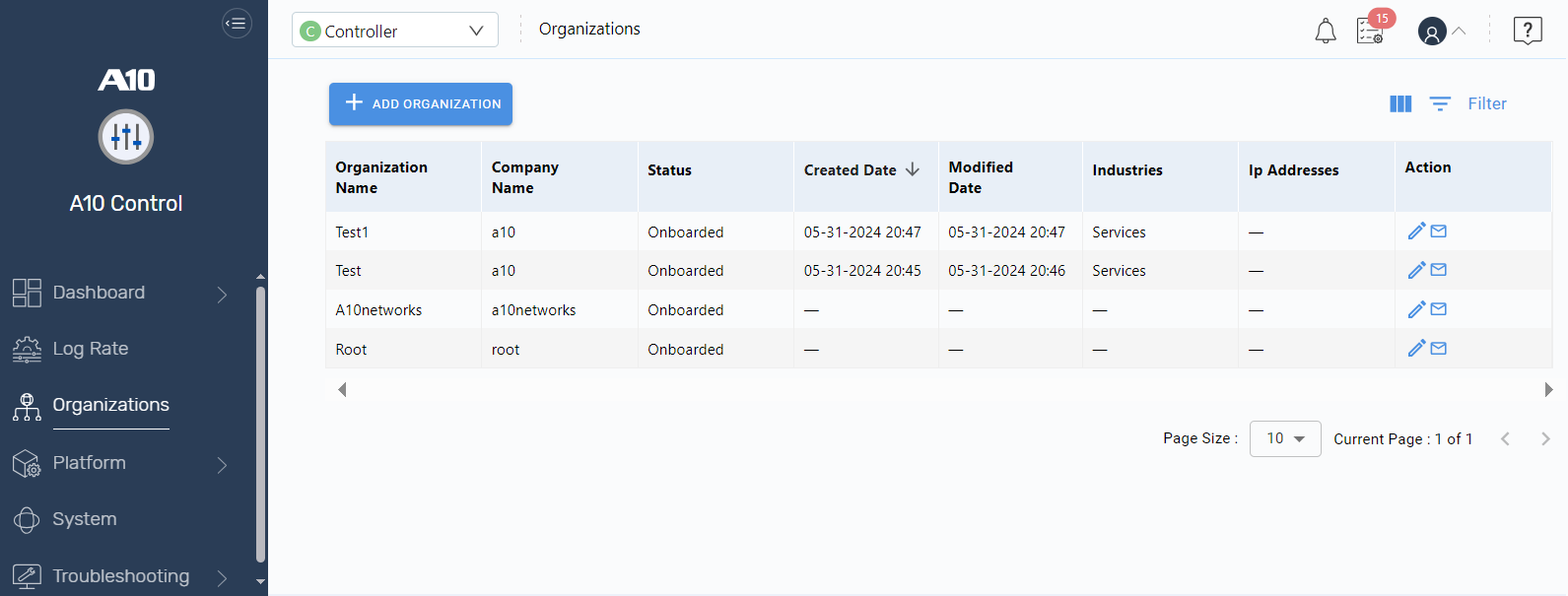
On the A10 Control Home page, you must first perform the following:
-
Register Thunder devices using the Manage Infrastructure module.
- Configure SSL certificates for FQDN and email server using the System Management module.
- Map FQDN to the A10 Control Floating IP address in the DNS manager.
-
(Optional) Configure remote locations and to keep backups in sync with the A10 Control storage. For information, see Backup and Restore.