Manage Automation Policy
An automation policy is used to automate the key post-registration tasks for cThunder devices deployed in a cluster. These tasks are required to re-enable network traffic and restore analytics tracking on A10 Control. The policy ensures consistent and error-free setup by executing predefined actions immediately after a cThunder instance is registered or re-deployed.
Automation Policies can perform the following actions:
- OrgUnit–Partition Mapping: Maps organizational units to device partitions and enables the flow of telemetry and metrics from cThunder to A10 Control for analytics and monitoring.
- License Token Mapping: Applies a predefined license token to the device during registration.
- Reclaiming License Bandwidth: Reclaims allocated license capacity if a device heartbeat is missed for a configured period.
- Scan configuration: Initiates a scan of the device configuration immediately after registration to ensure that analytics and telemetry are accurately captured.
Only Organization Admins have permission to manage the automation policy.
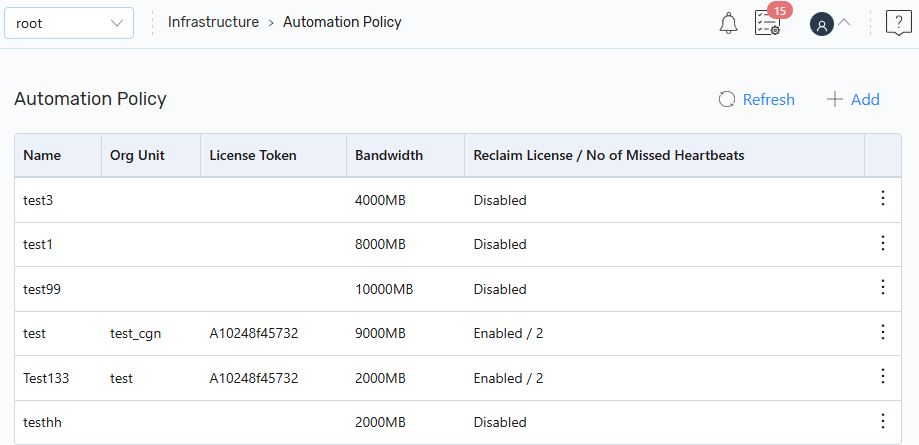
To view and manage automation policy in A10 Control, navigate to the A10 Control home page > Infrastructure > Automation Policy tab.
Figure 86 : Automation Policy
Add an Automation Policy
To add an automation policy:
- Navigate to Infrastructure > Automation Policy.
- On the Automation Policy page, click + Add.
-
On the Add Automation Policy page, enter the following details:
Field
Description
Name
Enter a name for the automation policy.
Description
(Optional) Enter a description for the automation policy.
Org Unit Org Unit
Select the Org Unit to associate with the policy.
License (Per Device)
License
Selected the license token added under Organization > License to be applied to devices registered using this policy. Bandwidth
Specify the per-device bandwidth capacity in MB or GB. Reclaim License On Missed Heartbeat
Enable or disable automatic license reclamation if device heartbeat is missed. -
Click Save.
The policy is created and listed on the Automation Policy page.
Edit an Existing Automation Policy
To edit an existing automation policy:
- On the Automation Policy page, click the Kebab menu corresponding to the required automation policy, and then select Edit.
-
On the Edit Automation Policy page, modify the required details and then click Save.
The updated policy details are saved and reflected on the Automation Policy page.
Delete an Existing Automation Policy
To delete/remove an existing automation policy:
- On the Automation Policy page, click the Kebab menu corresponding to the required automation policy, and then select Delete.
-
Confirm the deletion when prompted.
The selected automation policy is deleted.
Verify the Automation Policy Application
To confirm the application of Automation Policy using Workflow logs:
- Under the Organization Admin scope, navigate to Monitor > Workflows.
- In the workflow list, filter or search by task type: AUTOMATION_POLICY.
-
Click the relevant workflow execution instance to view details.
-
In the Status Message, verify that the following actions were completed successfully:
-
OrgUnit–Partition Mapping
-
License Token Mapping
-
Initial Configuration Scan
-
- If any task has failed, the corresponding error details will be displayed in the same view for troubleshooting.
To confirm the application of Automation Policy using Organization license view:
- Navigate to Organization > License and expand the required license to ensure the correct license token is applied.
- Click the Associated Device tab to confirm that the newly registered device appears.
-
Click the Activity Logs tab to verify that the following tasks were successfully executed as part of the Automation Policy:
- OrgUnit–Partition Mapping
- License Token Mapping
- Initial Configuration Scan
- If any task has failed, the corresponding error details will be displayed in the same view for troubleshooting.