Enable root User
To enable a root user, perform the following steps:
-
Log in to vCenter UI using your vCenter server IP address or FDQN.
https://vcenter_server_ip_address_or_fqdn
-
Click the VM for which you need to enable the root user.
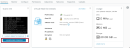
Figure 99 : Launch Web Console
-
Click Launch Web Console to log in to the Clone-Server VM. Log in using login details other than the root credentials.
A terminal window is displayed.
-
Execute the following command to set a new password:
sudo passwd root
[sudo] password for XXXX:
New password:
Retype new password:
Passwd: password updated successfully.
-
Execute the following command to install vim, if it is not already installed:
sudo apt install vim
-
Execute the following command to open the config file:
sudo vi /etc/ssh/sshd_config
The following window is displayed.
Figure 100 : Root User

-
Uncomment PermitRootLogin and change the status to yes

-
Execute the following command to restart the VM:
sudo systemctl restart ssh
- Verify the VM using the root credentials.


